Flexible Template Overview
A flexible template enables you to customize your message layout according to CSS Flexible Box (CSS Flexbox), where a "flex container" and "flex item" are equivalent to a "box component" and "component" in the flexible template, respectively.
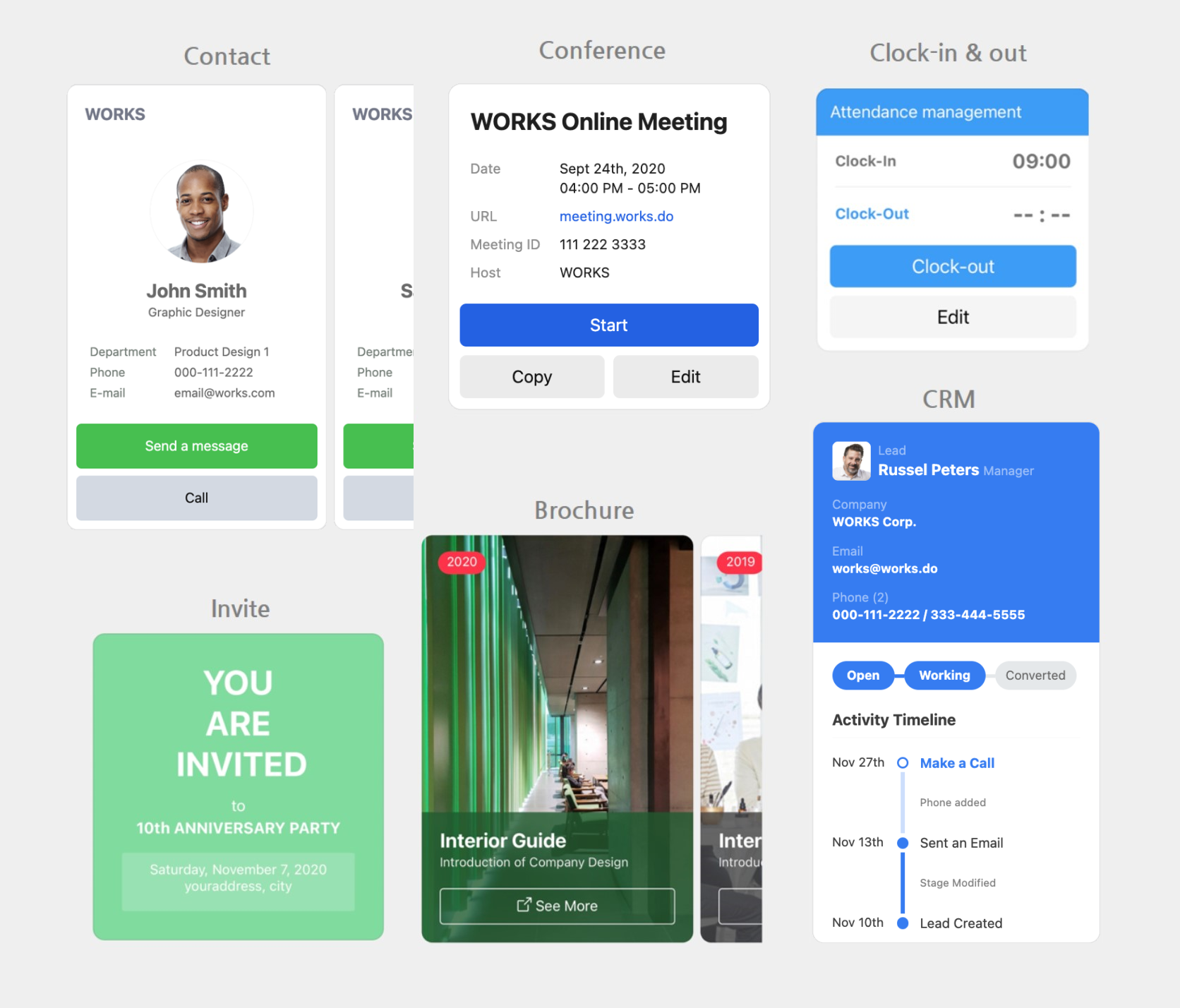
Flexible template object format {#flex-format}
Like other message types, a flexible template is formatted as JSON. For more information about how a bot sends flexible template messages, see the following topics:
Request {#flex-request}
Request content {#flex-request-parameter}
Common {#flex-request-common}
| Parameter | Type | Required | Description |
|---|---|---|---|
| type | string | Y | Set this parameter to flex. |
| "altText": | string | Y | Alternative text displayed on messages or push notifications. Alternative text can be written and sent in multiple languages. Maximum length: 400 characters |
| contents | object | Y | Flexible template container |
Multi language {#flex-request-multi}
| Parameter | Type | Required | Description |
|---|---|---|---|
| i18nAltTexts[] | array | N | List of multilingual alternative texts |
| i18nAltTexts[].language | string | Y | Language code • ko_KR • ja_JP • zh_CN • zh_TW • en_US |
| i18nAltTexts[].altText | string | Y | Multilingual alternative text Maximum length: 400 characters |
Request example
Flexible template structure {#flex-template-structure-example}
{ "content": { "type": "flex", "altText": "this is a flexible template", "contents": { "type": "bubble", "body": { "type": "box", "layout": "vertical", "contents": [ { "type": "text", "text": "hello" }, { "type": "text", "text": "world" } ] } } }}Multi language (altText) {#flex-multilang-alttext-example}
{ "content": { "type": "flex", "altText": "Hello", "i18nAltTexts":[{ "language": "ja_JP", "altText": "こんにちは" } "language": "ko_KR", "altText": "Hello" }], "contents": { "type": "bubble", "size": "mega", "hero": { "type": "box", "layout": "vertical", "contents": [ { "type": "text", "text": "YOU ARE INVITED!", "size": "xl", "color": "#ffffff", "weight": "bold", "align": "center", "wrap": true } ], "backgroundColor": "#81DBA0", "paddingAll": "15px" } } }}Create a container {#using-flex-simulator}
Use Flexible Template Simulator to create JSON code for a flexible template container. It helps you create JSON code for your container or check the layout without sending a message.
Flexible Template Simulator features {#what-is-flex-template}
- Create a complex message layout, based on the CSS Flexbox recommendation.
- Send a message bubble as well as multiple bubbles in a carousel, which users can scroll horizontally.
- Choose a left-to-right or right-to-left text direction.
Flexible Template Simulator structure {#flex-simulator-function}
Flexible Template Simulator consists of the following three areas:
- Preview area: Where a flex message is previewed, based on the data specified in the tree view and property areas.
- Tree view area: Where you can edit or display the data structure of your flex message.
- Property area: Where you can edit the data required to build your flex message. A flex message is created based on the data specified in this area.
Create JSON code for a container with Flexible Template Simulator {#how-to-use-flex-simulator}
- Connect to https://flex-simulator.worksmobile.com/.
- Click New and select Bubble or Carousel to fit your container layout. To use a layout provided as a sample, click Sample and choose a layout you want.
- In the tree view area, select header, hero and footer and click + to add objects.
- Click an object and specify its properties in the property area on the right.
- Repeat steps 3 and 4 until you complete your layout.
- Click View as JSON at the top.
- Click Copy.
- Paste the copied code under content.contents in the request body of the Send Messages API operation as shown in the following example.
{ "content": { "type": "flex", "altText": "Alternative text displayed on messages or push notifications", "contents": { Paste the copied code here. } }}