Application Login Page
Create an application login page for the step 3 of "Figure SAML 2.0 based SSO between LINE WORKS and the customer." This page is where users enter their IDs and passwords to log in to the LINE WORKS app or Drive Explorer.
After verifying the SAML request and processing the login request, generate a SAML response and return it to the ACS URL.
Note
- Although the LINE WORKS app and Drive Explorer run as an application, they internally use an in-app browser to call the customer's web page. Therefore, you can create a responsive "web login page" and use it for application login too, rather than creating an additional application login page.
Caution
- The customer must redirect users to the ACS URL after logging them in. Otherwise the login process will not work as expected.
Request URL {#app-login-request-url}
https://CustomerDomain/CustomerLoginPage
You can only use port 80 or 443 according to LINE WORKS's infrastructure security policy.
Register the request URL in Application Login URL under SSO > WORKS as SP in the Developer Console.
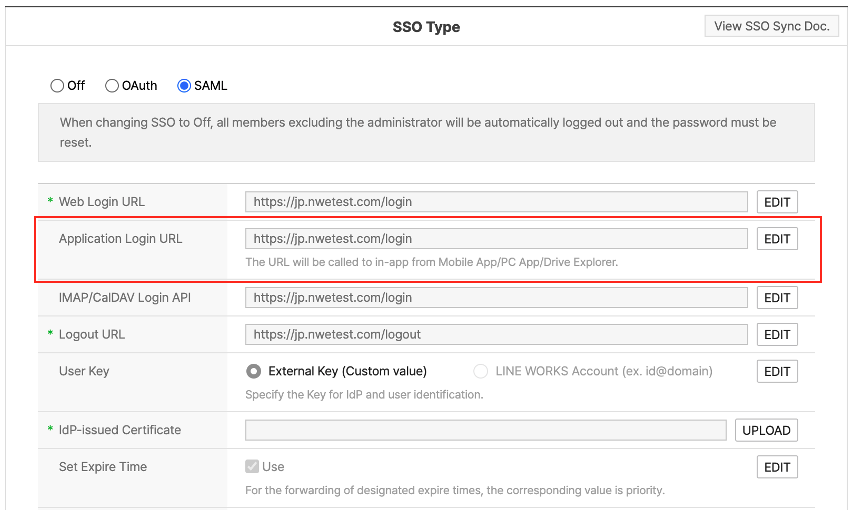
Figure Add SAML 2.0 based Application Login URL
HTTP method {#app-login-request-method}
GET
Request {#app-login-request-parameter}
| Parameter | Type | Required | Description |
|---|---|---|---|
| SAMLRequest | String | Y | A character string as specified in the SAML 2.0 request specification (encoded with Deflate + Base64) |
| RelayState | String | Y | URL to redirect to when authentication fails. |
| worksId | String | N | User's LINE WORKS account. It can be used on the customer's login page if needed. |
Note
- The customer must redirect a SAML response to the ACS URL of the LINE WORKS authentication system within 30 minutes after receiving a SAML request. Otherwise, the login is considered abnormal and thus fails.
- The userAgent value in the HttpRequest Header is subject to change without notice.