Register SAML Apps
This page describes how to register SP details in the Developer Console.
You can register service provider (SP) information under SSO > WORKS as IdP in the Developer Console.
To add an SP, you need to get SSO URL, Issuer, and Certificate (.pem file) from LINE WORKS.
Then, add the information to the settings page of an SP you want to use.
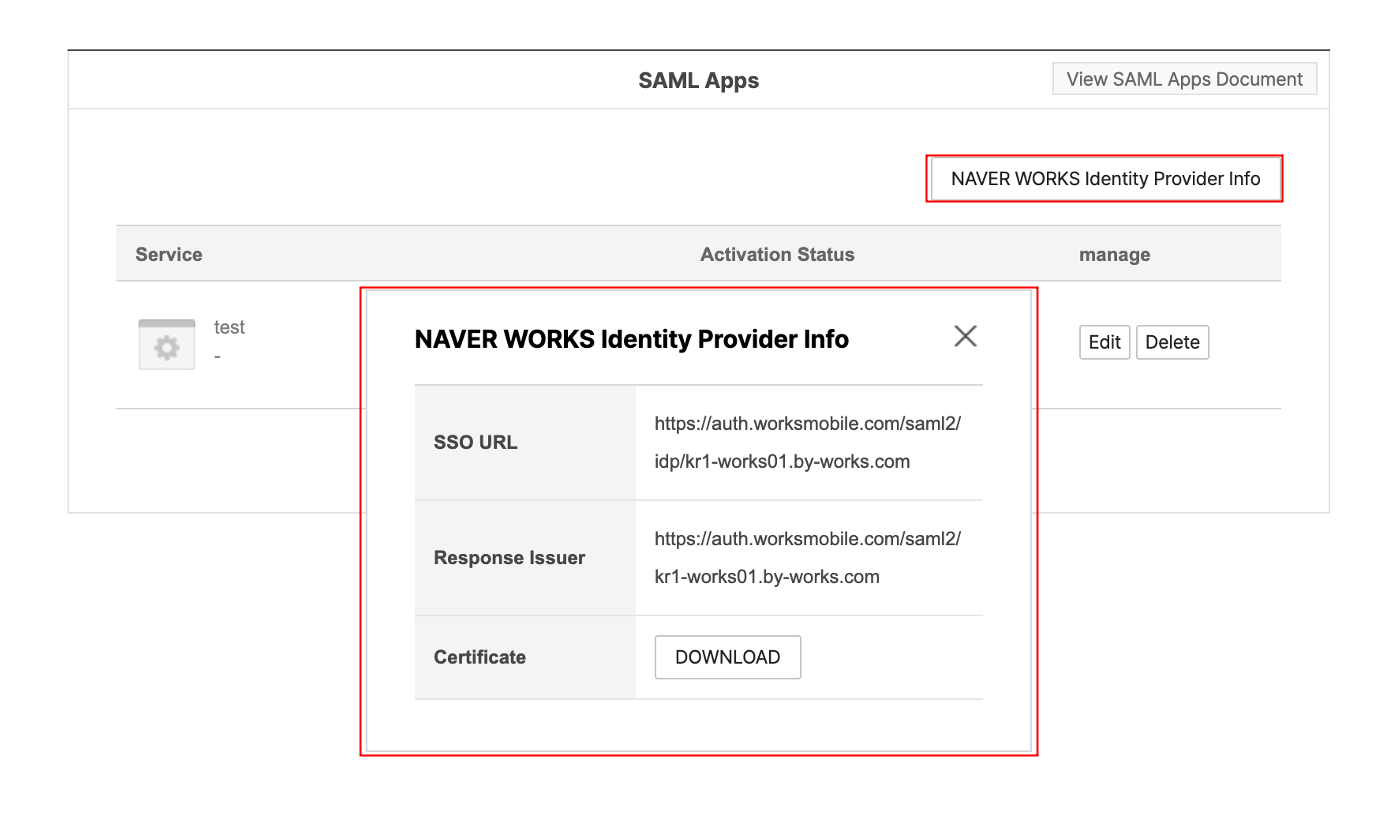 Figure LINE WORKS Identity Provider Information
Enter the name of an application you want to use as an SP (required), and add a description and logo image (optional).
The maximum image size is 1MB.
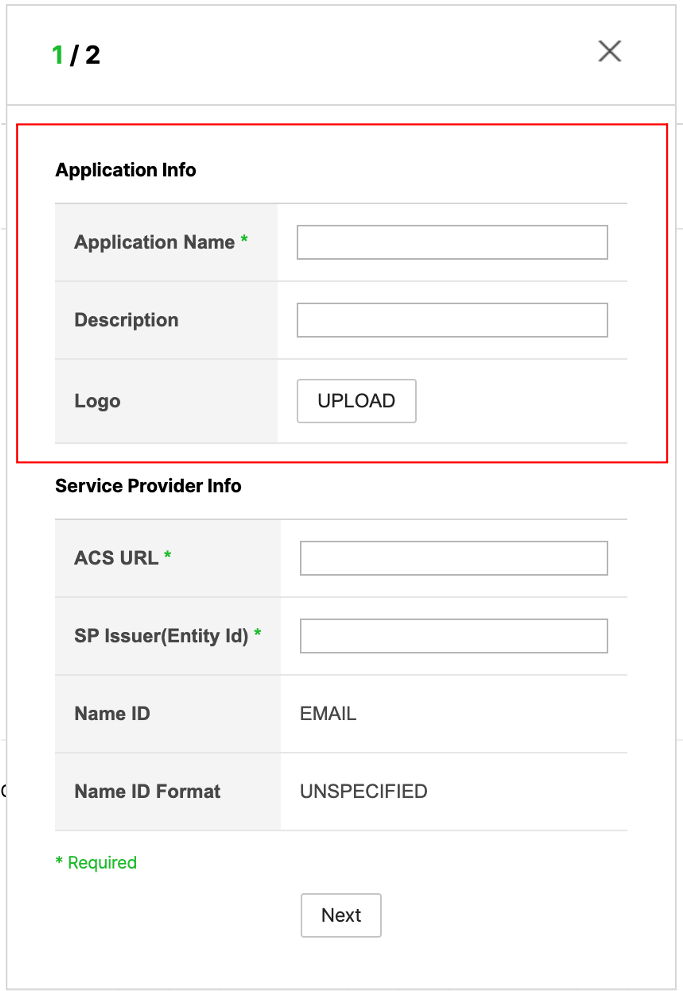
Figure Application Information
Enter the SP's ACS URL and Issuer (Entity ID). The SP Issuer cannot be duplicated within a domain.
LINE WORKS passes user information, which is in the form of either id@domain (email) and id@group depending on the customer's plan.
Name ID is "EMAIL" and Name ID Format is "UNSPECIFIED".
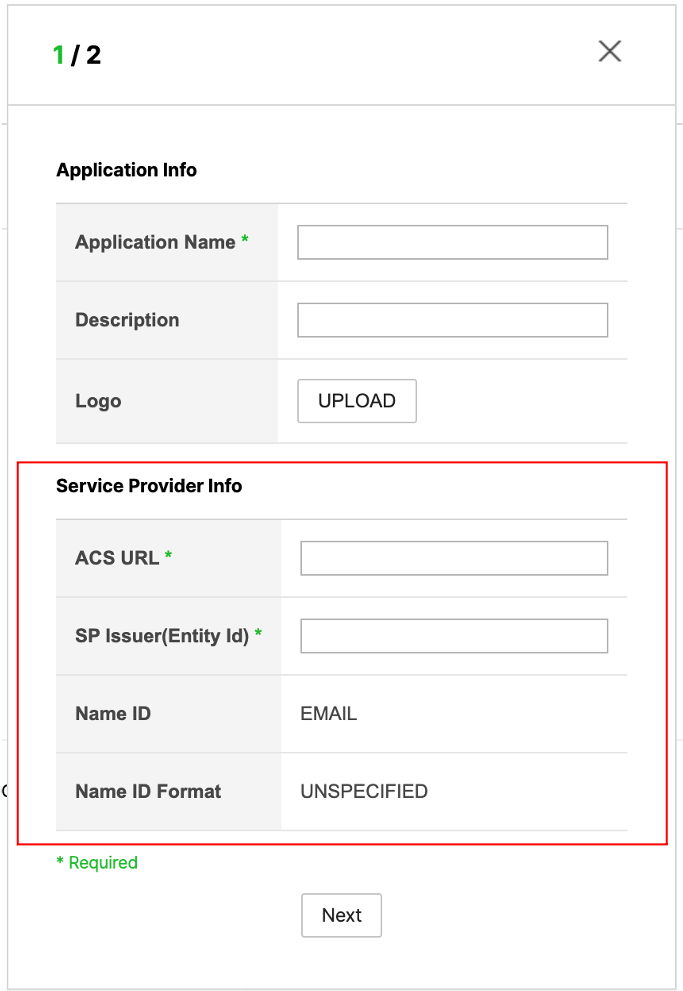
Figure Service Provider Information
Click TEST on the management page to check the SAML response sent from LINE WORKS.
The SAML response is sent to the SP's ACS URL.
You can also click Adjust on the SAML Apps management page to restrict users from logging in if necessary.
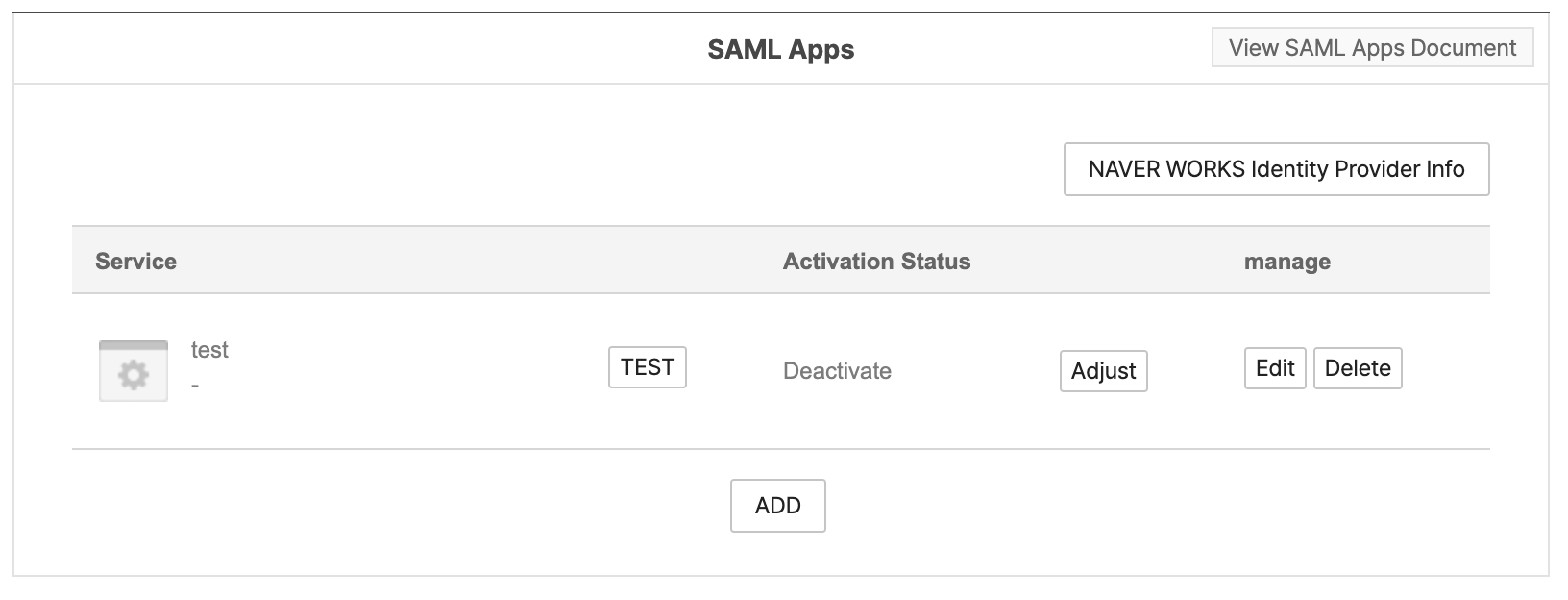
Figure SAML Apps
Update the certificate {#update-certificate}
The certificate expires in 5 years. You need to get a new certificate and register it to the SP before the current one expires.
- Select LINE WORKS Identity Provider Info.
- Select Delete from Certificate.
- Select Download.
- Add the new certificate file you downloaded to the SP.
Caution
- Once the certificate file is deleted, users cannot log in to the SP until a new certificate is registered.
Activate the SP {#enable-saml-app}
- Select Adjust for a service to use.
- Select Activate and then Save.
Note
- You can activate or deactivate services at any time.
Check the SAML response {#verify-saml-app}
Click TEST from the SP list under SAML Apps to check the SAML response that is actually sent from LINE WORKS. The SAML response is sent to the SP's ACS URL.